
Below are some of the best tips for using Windows 10:
The ultimate search box
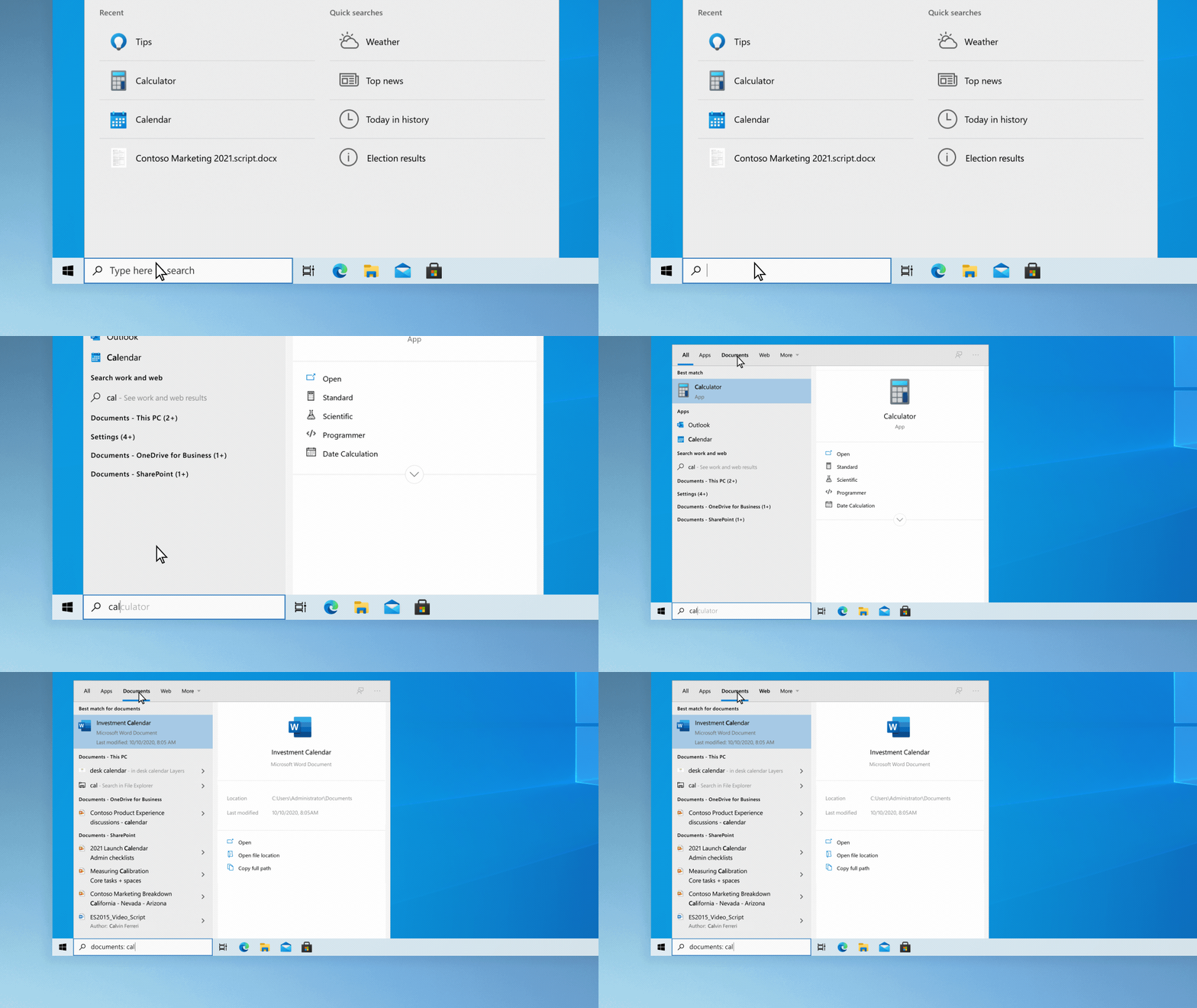
Type an app or file name, email subject, or favorite celebrity into the search box on the taskbar (the bottom bar on your screen). You’ll get results on your PC (like apps, files, and messages) and the web. Use the tabs at the top to narrow your search. More about searching in Windows
Customize your Start menu
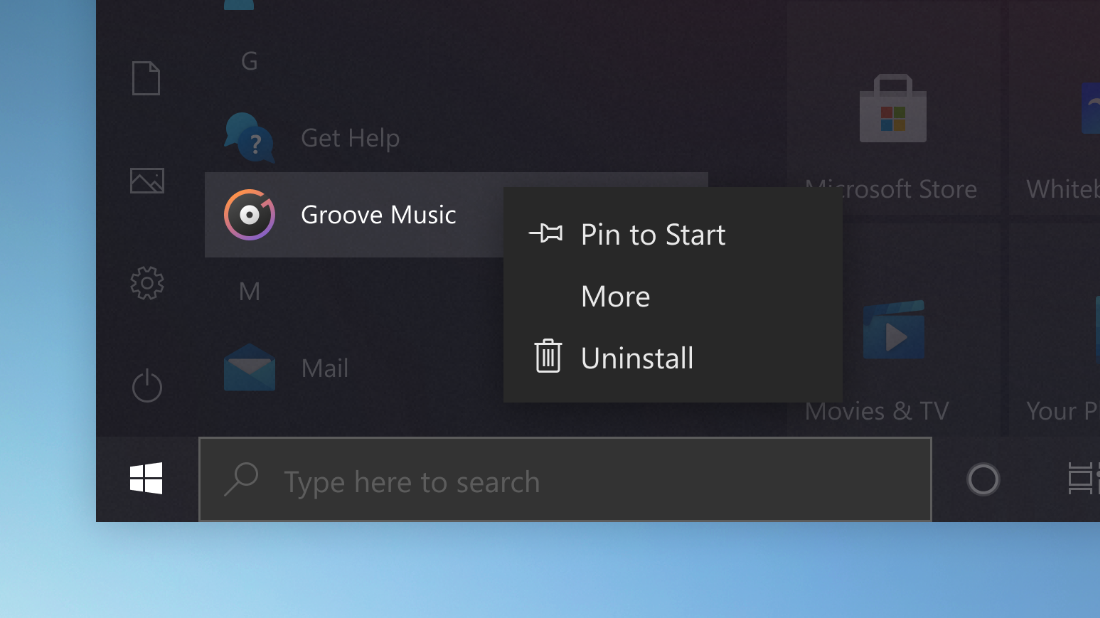
Pin apps to the Start menu for quick access to what’s important. Select Start > press and hold (or right-click) the app you want to pin > Pin to Start. You can also unpin the apps you don’t need.
Organize Start with folders
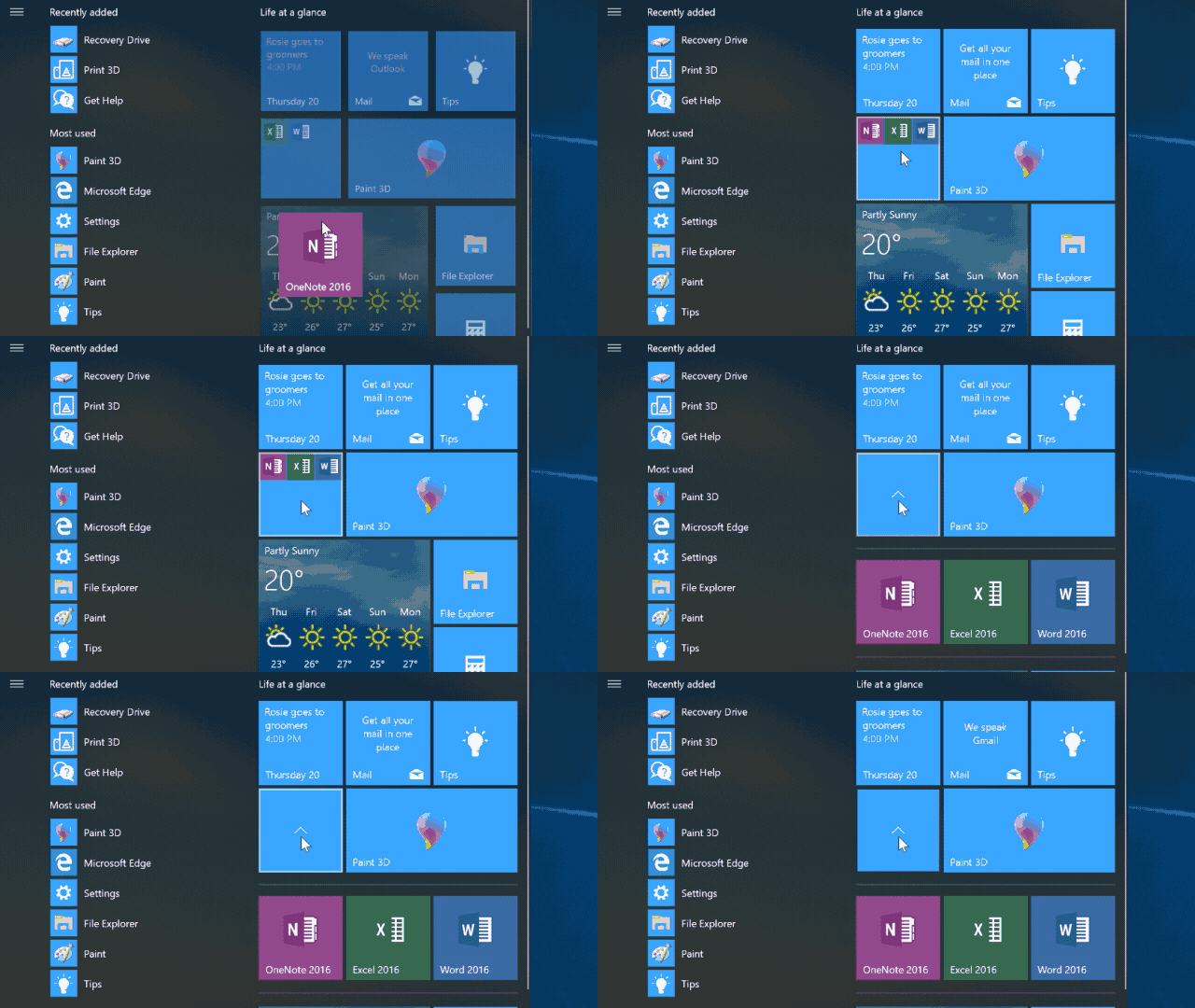
Drag one tile on top of another to make a folder, then drag more tiles into it. To open the folder, just select it.
Find settings quickly
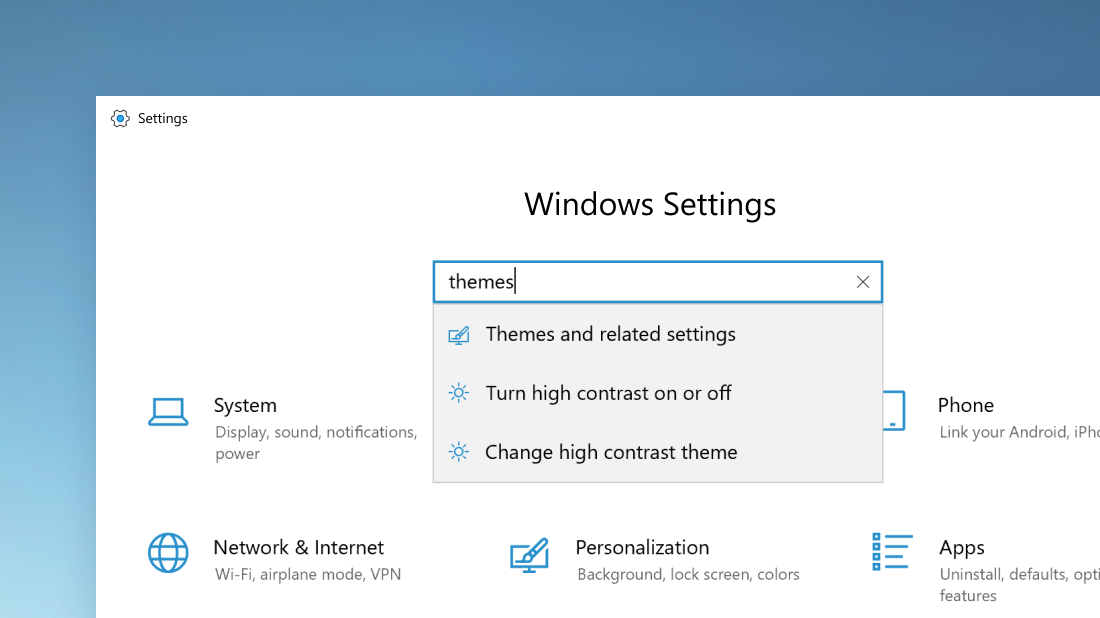
Select Start > Settings , and then type keywords in the search box to find the setting you want.
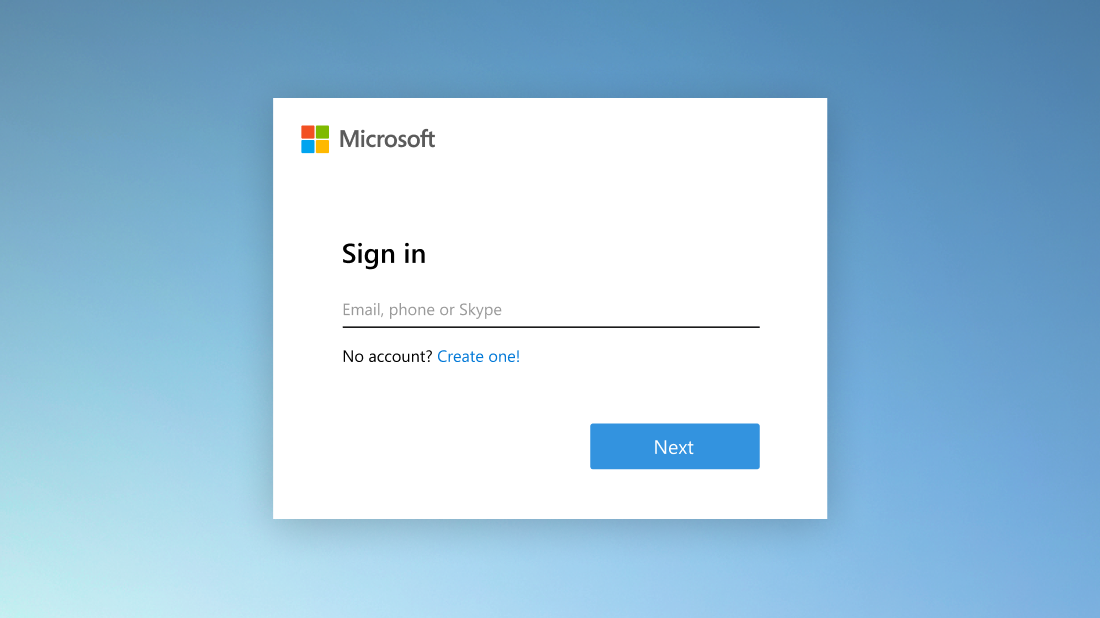
Sign in with one account on all your devices
Select Start > Settings > Accounts > Email & accounts , then select Add a Microsoft account to sign in. On each of your devices, sign in with that account.
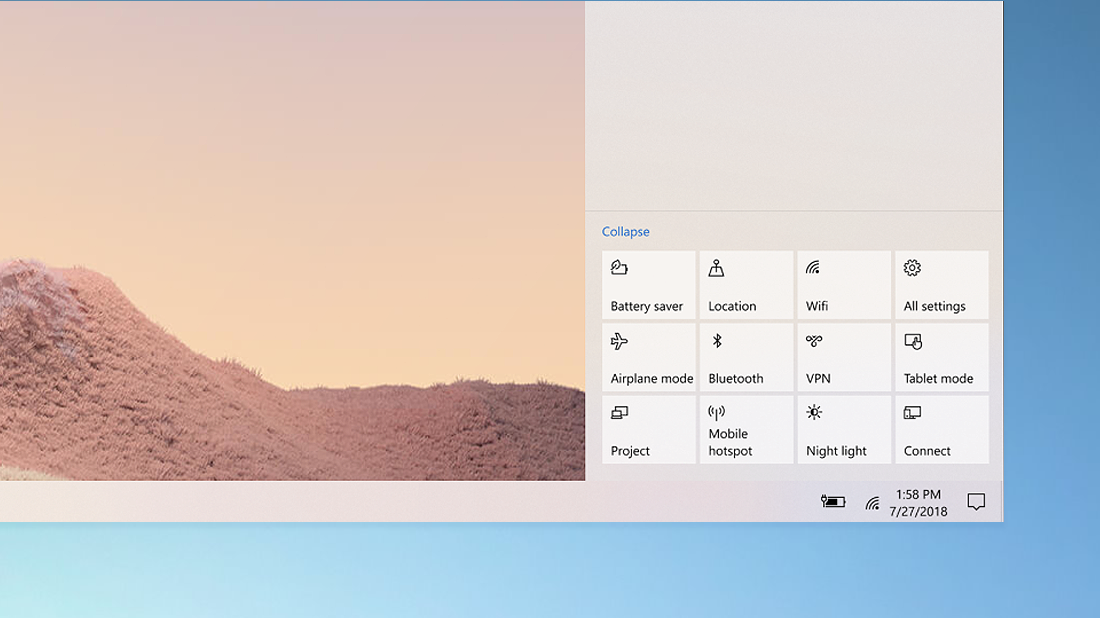
Quickly change settings in action center
Open action center , then select a quick action to instantly change a setting or open an app. Or right-click a quick action and select Go to Settings or Edit quick actions.
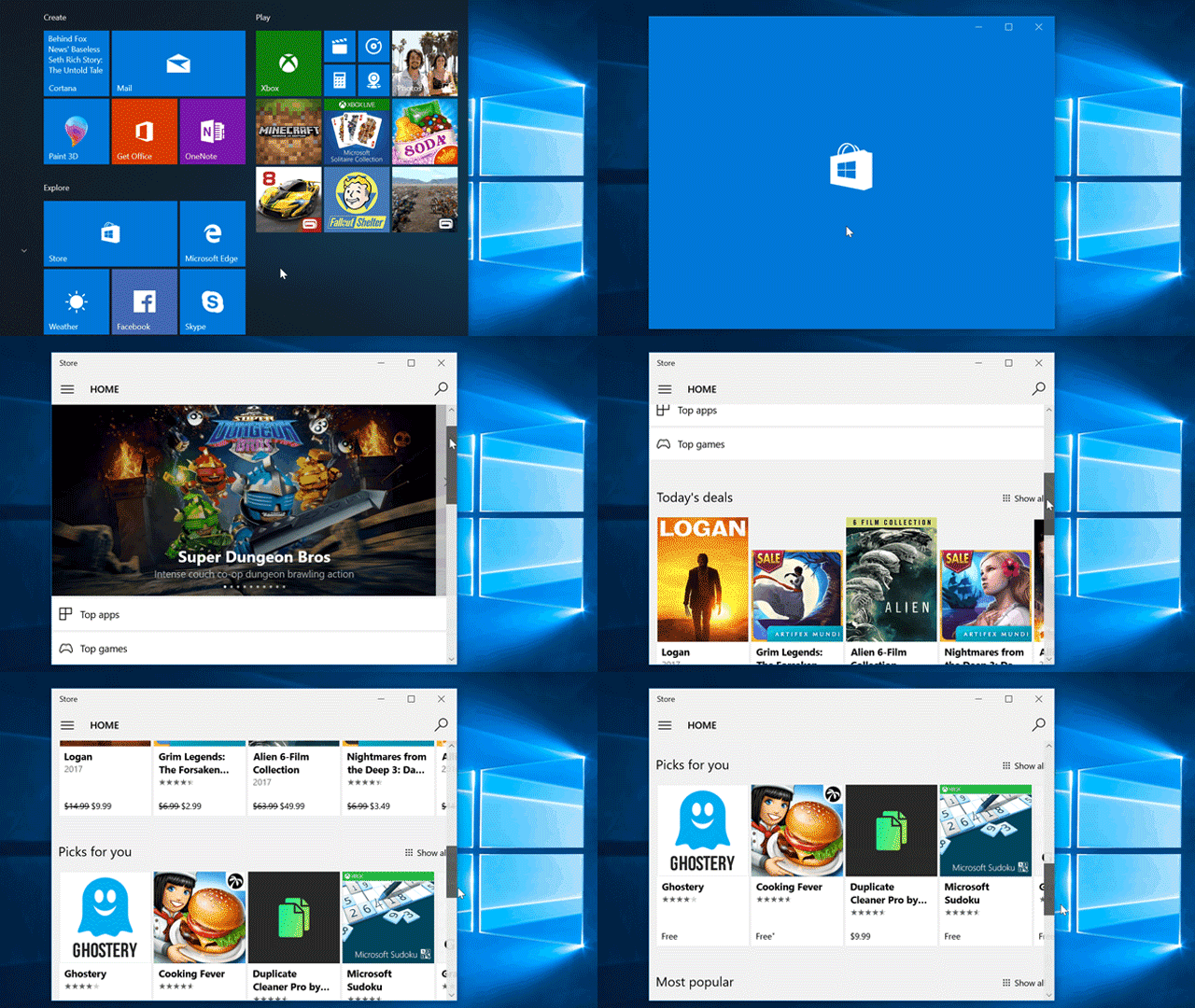
Get apps for your PC
Shop in Microsoft Store for free and paid apps, games, music, movies, TV shows, and books. Select Start > Microsoft Store .
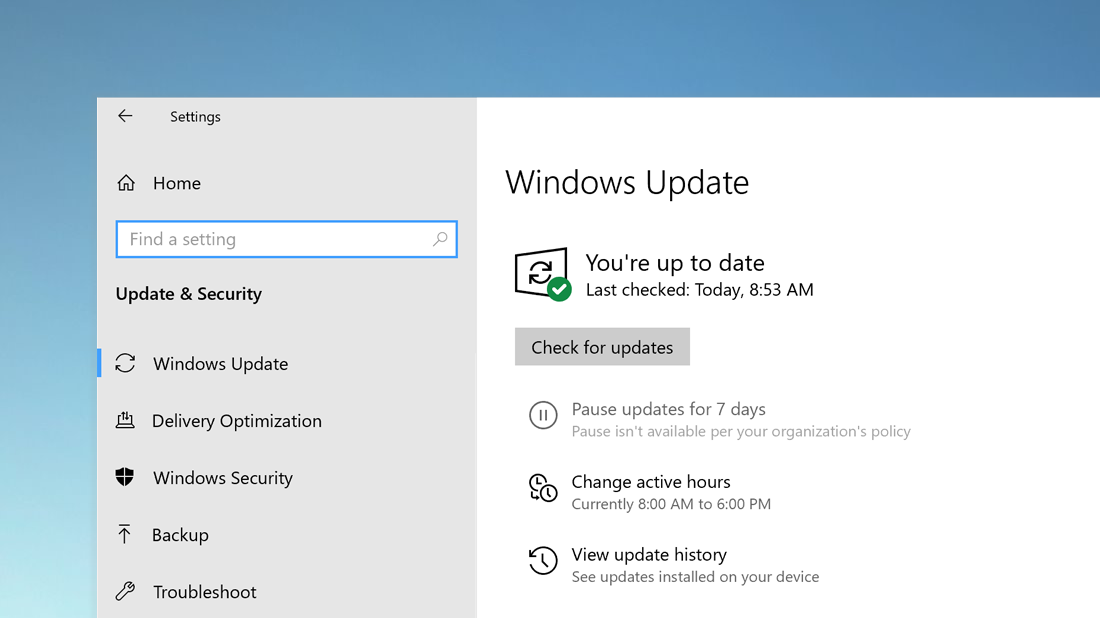
Keep your PC up to date
Get the latest features and security updates. Select Start > Settings > Update & Security > Windows Update > Check for updates to see if there are new updates.
Recent Comments